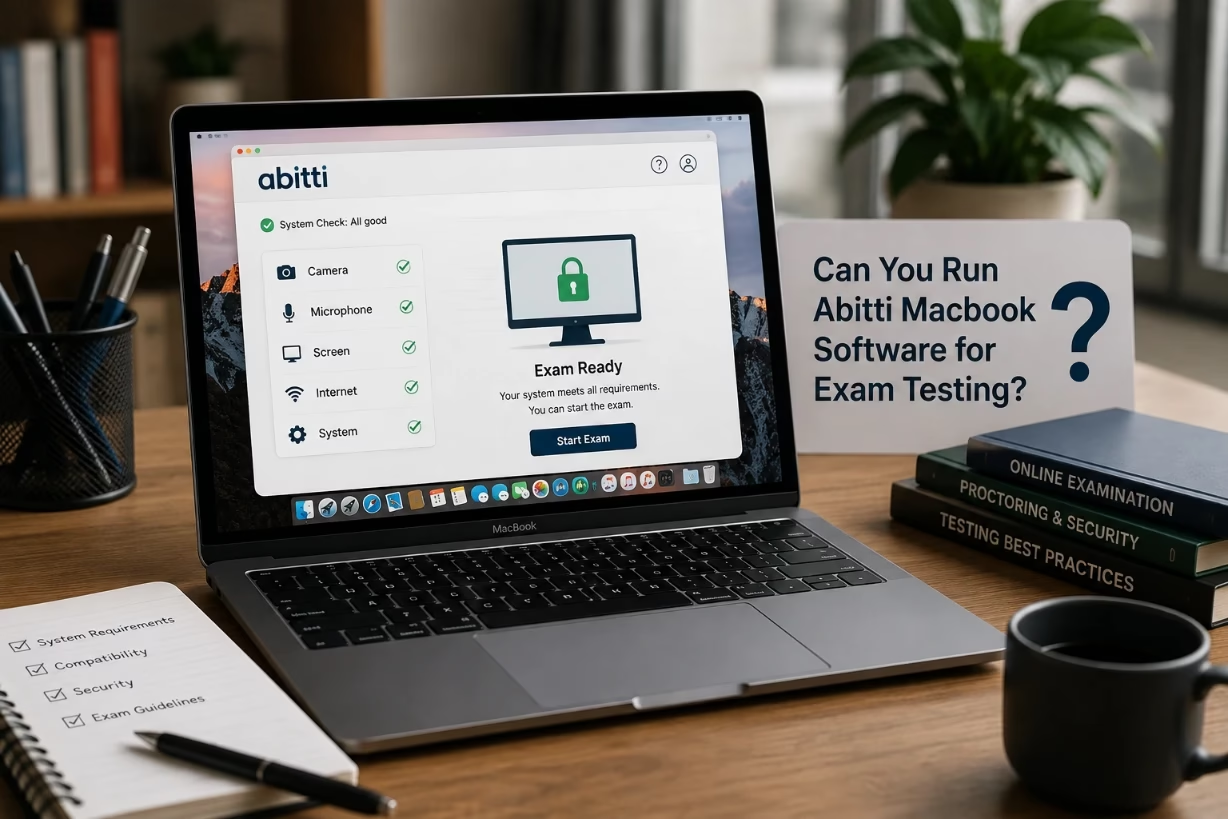
Yes, an abitti macbook can run Abitti 2 for exam testing if it has Apple Silicon, macOS 26.1 or later, at least 8 GB of RAM, and the school-required candidate app version installed. Intel MacBooks and Apple USB boot methods are not the reliable route for Abitti 2 exams.
Can You Use an Abitti MacBook for Exam Testing?
If you are asking whether a MacBook can handle Abitti exam testing, the answer is now much clearer than it was during the older Abitti system. Abitti 2 has a dedicated macOS candidate application. That means an eligible Apple laptop can enter a controlled exam mode without needing to boot into the old USB-based Linux environment.
For students, this matters because the exam computer is not just opening a browser tab. During an Abitti test, the system needs to limit access to personal files, regular apps, notes, messages, and other tools that could affect exam fairness. The macOS candidate app is built to place the computer into an exam-focused state while still allowing the student to use the tools provided inside the Abitti exam environment.
Still, not every MacBook is an abitti macbook. A MacBook may look modern, run smoothly for schoolwork, and still fail the official requirements. The model, processor type, macOS version, installed candidate app version, available memory, and school testing process all matter. I recommend treating compatibility as something to confirm early, not something to gamble on during exam week.
Official Abitti MacBook Requirements for Abitti 2
The official requirements for the Abitti 2 macOS candidate application are specific. For the 2026 exam rules, the Mac must use macOS 26.1 or later and have an Apple Silicon processor. The common hardware requirements also call for at least 8 GB of RAM. In simple terms, the supported direction is an Apple Silicon MacBook running a current approved version of macOS, not an older Intel-based Mac.
| Requirement | What It Means for an Abitti MacBook |
|---|---|
| Processor | Apple Silicon is required, such as M1, M2, M3, M4, or a later Apple chip. |
| Operating system | The MacBook must run macOS 26.1 or a newer approved version. |
| Memory | At least 8 GB of RAM is required for candidate applications. |
| Candidate app | You need the exact version announced by your school or the examination authority. |
| Testing | The laptop should be tested in a real Abitti practice exam before the official test. |
Apple Silicon refers to the newer generation of Apple processors that began with the M1 chip. You can check this by clicking the Apple menu, selecting About This Mac, and looking for “Chip.” If you see Apple M1, M2, M3, M4, or another Apple chip, the processor requirement is likely met. If you see “Intel,” your computer does not meet the current macOS candidate application requirement for the official Abitti 2 route.
This change can feel frustrating if you own a perfectly usable Intel MacBook. It is not a judgment on the quality of the computer. It is about whether the device can work safely and consistently with the locked exam setup required by Abitti 2.
Why Older Intel MacBooks Are Different
Many people remember Abitti as a system that started from a USB drive. Under Abitti 1, students often booted their computers into a Linux-based exam environment from a flash drive. That approach worked with many x64 Windows laptops, but Apple computers were never a simple fit for USB booting. Apple hardware, especially newer models, has its own security and startup design.
With Abitti 2, the normal path is different. Students generally use an installed candidate application on Windows or macOS instead of starting their computer from a USB stick. The macOS application can place the computer in exam mode and block access to the student’s normal apps and files during the test.
The USB candidate drive still exists as a fallback for some devices, but it is not a solution for Apple laptops. Abitti’s own installation guidance says that the Abitti 2 candidate USB drive does not work on all computers, including Apple devices.
That is why an Intel MacBook should not be treated as a safe backup plan for an Abitti exam. You should not assume you can install Linux, use Boot Camp, run a virtual machine, borrow a USB image, or make a last-minute workaround. Exam systems are designed to prevent exactly the kind of layered setup that can weaken control, create technical problems, or make device verification difficult.
How the Abitti macOS Candidate App Works
The Abitti macOS candidate application is installed on the MacBook before the exam. When the student opens it, the computer shifts into a restricted testing state. Personal files and standard macOS applications are not available in the normal way. The student can join the assigned exam network, enter the exam server information provided by the proctor, and work in the permitted Abitti environment.
This approach is much less disruptive than restarting from a flash drive. Your usual macOS setup stays on the machine. After the test is over, you can return to your usual account and regular work. But while the test is active, you should expect the computer to behave differently. That is the point. A reliable abitti macbook should feel boring during an exam: no surprise notifications, no random login problems, no missing network connection, and no urgent software update prompts.
Abitti’s macOS app also uses technical monitoring during the test. The goal is to support exam security and help the testing organization identify technical issues or suspicious conditions. Students should not try to bypass, remove, block, or interfere with the app’s permissions or monitoring behavior. Doing so can create a serious problem even if the student did not intend to cheat.
How to Check Whether Your MacBook Is Ready
I suggest doing a full readiness check at least a few weeks before the exam. Do not wait until the night before. A rushed setup can turn a small issue, such as a forgotten administrator password, into a stressful problem when you should be focused on the exam itself.
Check Your MacBook Chip and Memory
Open Apple menu > About This Mac. Confirm that the computer has an Apple Silicon chip. Then check the memory amount. Most Apple Silicon MacBooks come with 8 GB or more, but you should still verify it. The official baseline is 8 GB of RAM, and a computer with more memory may feel steadier when handling long exams, media materials, or approved supporting programs.
Confirm the macOS Version
Go to System Settings > General > About or Software Update. The Abitti 2 macOS rules require macOS 26.1 or later. Do not update blindly on the morning of an exam. Install required updates well ahead of time, restart the MacBook, and test Abitti afterward. A brand-new macOS update can sometimes change permissions, restart behavior, or network settings.
Install the Correct Abitti App Version
Your school will tell you which Abitti candidate application version is required for the exam session. The examination authority typically publishes the versions around one month before the first exam date. For Finland’s fall 2026 examinations, the announced macOS candidate application version is 0.6.1 or later.
That version detail is not just a technical footnote. A MacBook can have Abitti installed and still be unprepared if the app is outdated. Always download the official installer from the Abitti site or follow the installation method provided by your school’s IT staff. Do not download packages from file-sharing sites, social media posts, or unfamiliar forums.
Run a Practice Test on the Same MacBook
A practice test is the best way to find problems while there is still time to solve them. Join the right test network, launch the candidate application, enter the test environment, check your keyboard layout, test audio if your subject requires it, and make sure the battery status looks normal. If you use glasses, headphones, a wired mouse, a drawing tablet, or a USB adapter, test those too.
The official guidance places responsibility on the candidate to arrive with a working computer that meets the rules. That may sound strict, but it is useful motivation. The more testing you do before exam day, the less likely you are to spend the first minutes of an important test staring at an error screen.
Accessories That Can Help an Abitti MacBook
Modern MacBooks often have USB-C ports only. That is not automatically a problem, but it means you need to think through accessories before exam day. Some exam rooms use Wi-Fi, while others may require wired networking or specific equipment. A quality wired USB-C adapter can be helpful when it is allowed by the school.
Keep accessories simple and approved. The general rules allow necessary external equipment such as a separate keyboard, mouse, or pointing device. However, those items must not use radio communication, contain outside exam material, or allow communication beyond the computer. Bluetooth accessories may therefore be unsuitable. Wired accessories are usually the calmer option because they are easier to verify and less likely to run out of battery.
- Bring the original or reliable MacBook charger.
- Use a wired adapter if your school requires Ethernet access.
- Choose wired headphones when audio is needed.
- Test every adapter before the official exam.
- Ask the school before bringing unusual accessibility tools.
Common Abitti MacBook Problems and Practical Fixes
The app will not install. This often happens when the student does not have administrator access, when the Mac is managed by a school, or when macOS is too old. If the device belongs to the school, contact the school IT team instead of trying to change management settings yourself. If it is your personal MacBook, make sure you know the administrator password before installation day.
The MacBook is Intel-based. Do not expect the macOS candidate app path to work for the official test. Ask your school early about a loan laptop or another approved device. Borrowing a compatible Apple Silicon MacBook is only useful if you can install the required app and fully test it in advance.
The test network does not connect. Forgetting old Wi-Fi networks, turning off VPN software, restarting the computer, and following the proctor’s network instructions can help. Do not bring a personal hotspot as a workaround unless the school explicitly tells you to do so. Exam network rules exist for a reason.
Notifications or apps appear unexpectedly. Update the candidate app, restart the MacBook, and run the practice test again. The Abitti application is supposed to restrict access to ordinary apps and files during the exam. If anything looks wrong, document the issue and tell the school before the official session.
Should You Buy a MacBook Specifically for Abitti?
If Abitti is your main reason for buying a computer, I would not choose a MacBook based only on the brand or screen size. First, check your school’s own advice. Some schools have established support routines for certain devices, adapters, and classroom networks. A computer that is easy for the school to support can save a lot of pressure later.
If you already prefer macOS for writing, research, design, coding, or everyday school tasks, an Apple Silicon MacBook that meets the current system requirements can be a sensible abitti macbook choice. The key is not buying the most expensive model. The key is buying a compatible model, maintaining it carefully, and practicing with the same device you will take into the exam room.
For students who already own an unsupported Intel MacBook, replacing it may not be the only answer. Your school may offer loan equipment or recommend another approved option. Ask before spending money. The goal is a working exam device, not a status symbol.
Final Answer: Is an Abitti MacBook Reliable for Exams?
An abitti macbook is reliable for exam testing when it is an Apple Silicon model with at least 8 GB of memory, macOS 26.1 or later, the school-required Abitti 2 candidate application, and a successful practice test behind it. Do not rely on an Intel MacBook or an Apple USB boot workaround. Prepare early, test every accessory, and contact your school as soon as a problem appears.